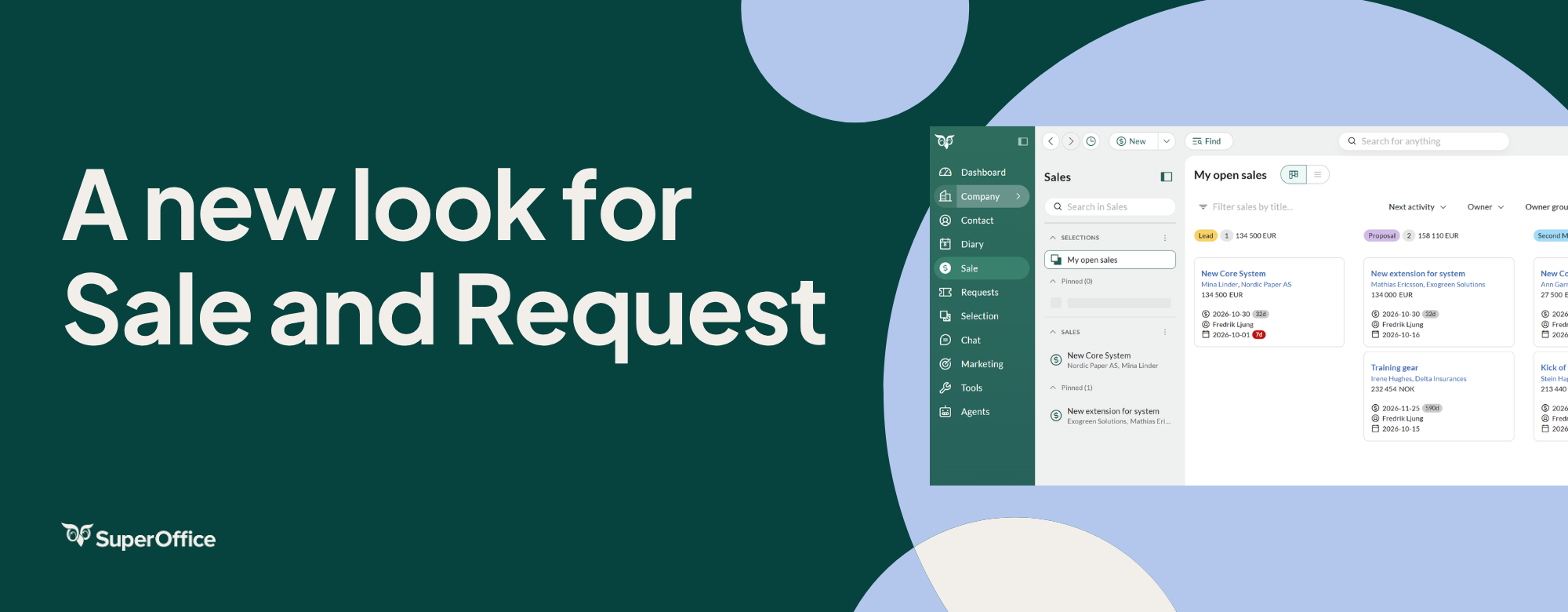
We are introducing the new Sale screen, the new Request screen, and recent, back and forward navigation features to make SuperOffice faster to work with. Together, they keep your work in one place and reduce the clicks between finding something and acting on it, so your team has more time for customers.
The new Sale screen
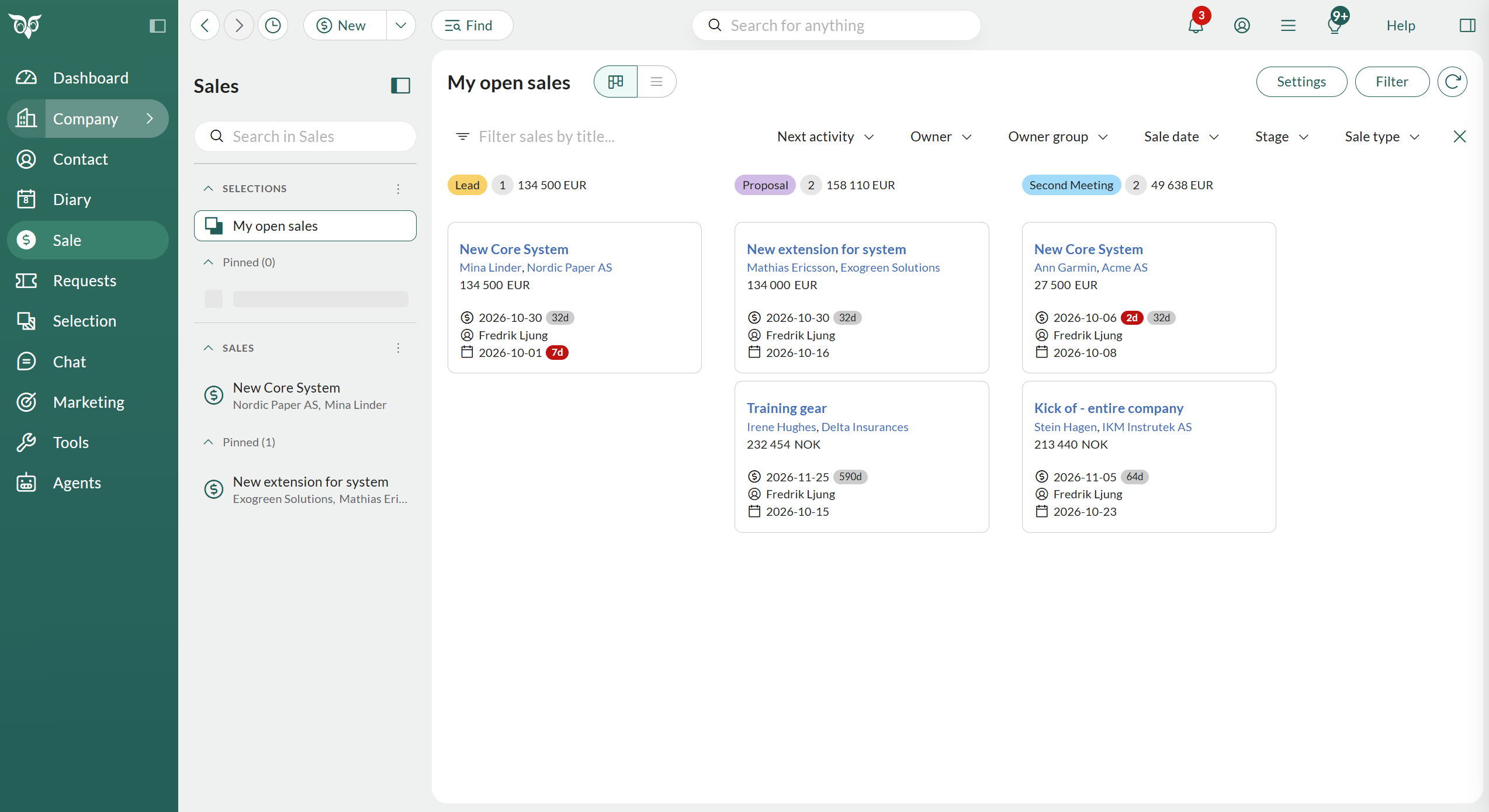
Work with one sale or many, in the same place
Click Sale in the navigator and you get a left menu with your sales selections, such as My open sales, My group's open sales and All open sales. The selection you are working with is your active selection, shown in board view or list view.
Below the selections, you find your individual sales. Open one to add activities, edit details and follow up, then go straight back to your group of sales.
Pin what matters
Use the pin icon to keep important selections and sales in the left menu. Pin your key pipelines and your most important deals, and they stay front and centre while you work.
Board view and list view
Switch between board view and list view with one click. Drag and drop sales between sale stages in board view. Group the board by stage, sale type or owner. Grouping by owner makes it easy to review all open sales and distribute them across the sales team.
Hide the side panel when you need more space, for example on a small screen.
Recent, Back and Forward
The top bar now has a Recent menu and Back and Forward buttons. The Recent list shows the companies, contacts, projects, sales, requests and selections you have worked with lately, so you can jump straight back to them. Back and Forward buttons move through your history the way you are used to in a web browser.
Why is this important?
Every minute spent looking for the right sale is a minute not spent with the customer. The new screen gives that time back to you and your teams, so they can close more deals.
This means:
- More time for selling. Sales reps move from pipeline to deal and back without losing their place, so more of the day goes to customers and less to navigating.
- Fewer deals slip through the cracks. Key opportunities stay pinned and visible, so follow-ups happen on time.
- Better control of the pipeline. Managers see every open sale by stage or owner and can rebalance the workload in minutes.
See more of the features in interactive demos.
The new Request screen
A larger workspace for every request
The horizontal tabs at the top of the request screen move to a vertical menu on the left, the same as in Sales. This gives you more room for the request itself, so you can see more messages in a thread at once. Pin or hide the menu to make the most of your screen.
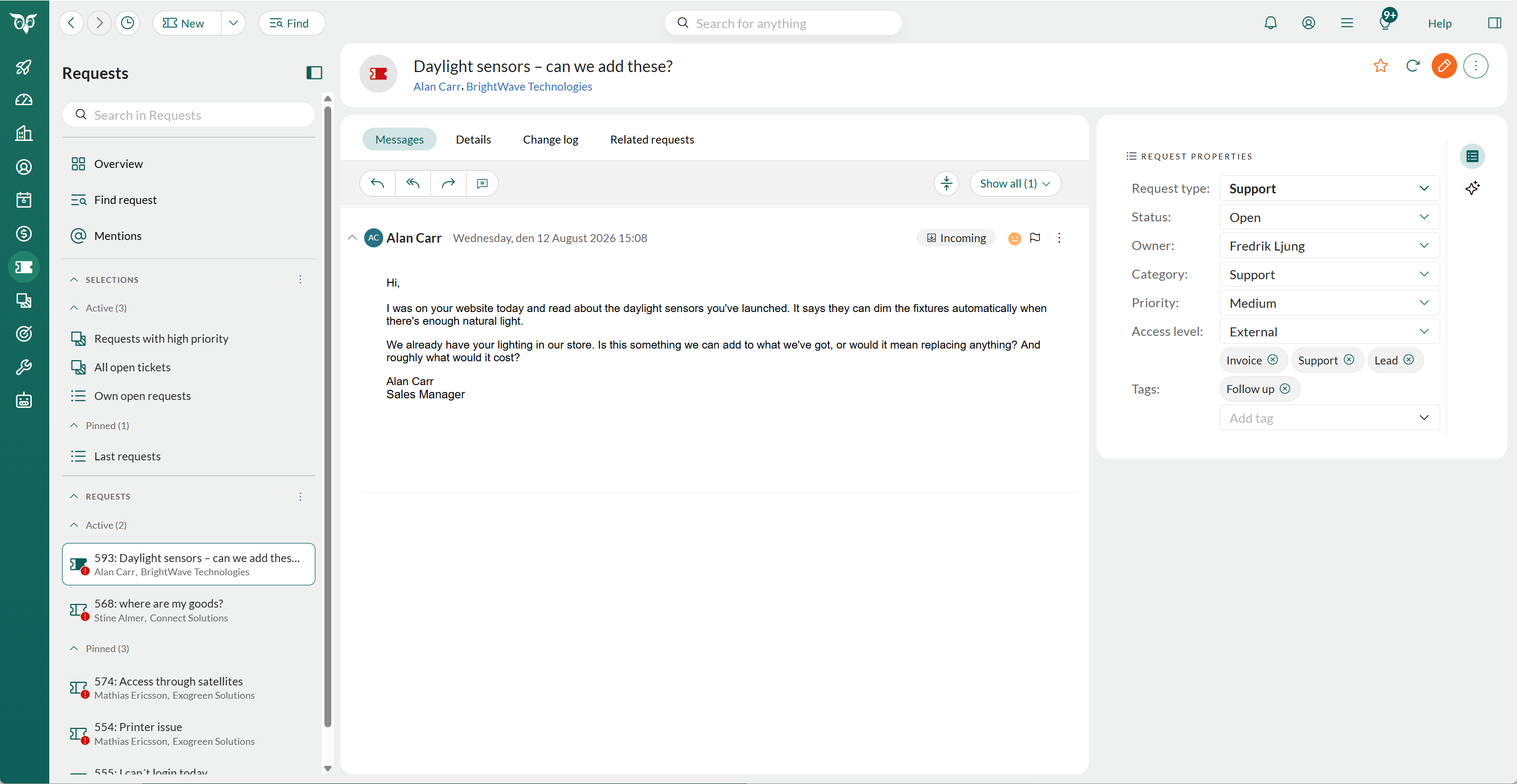
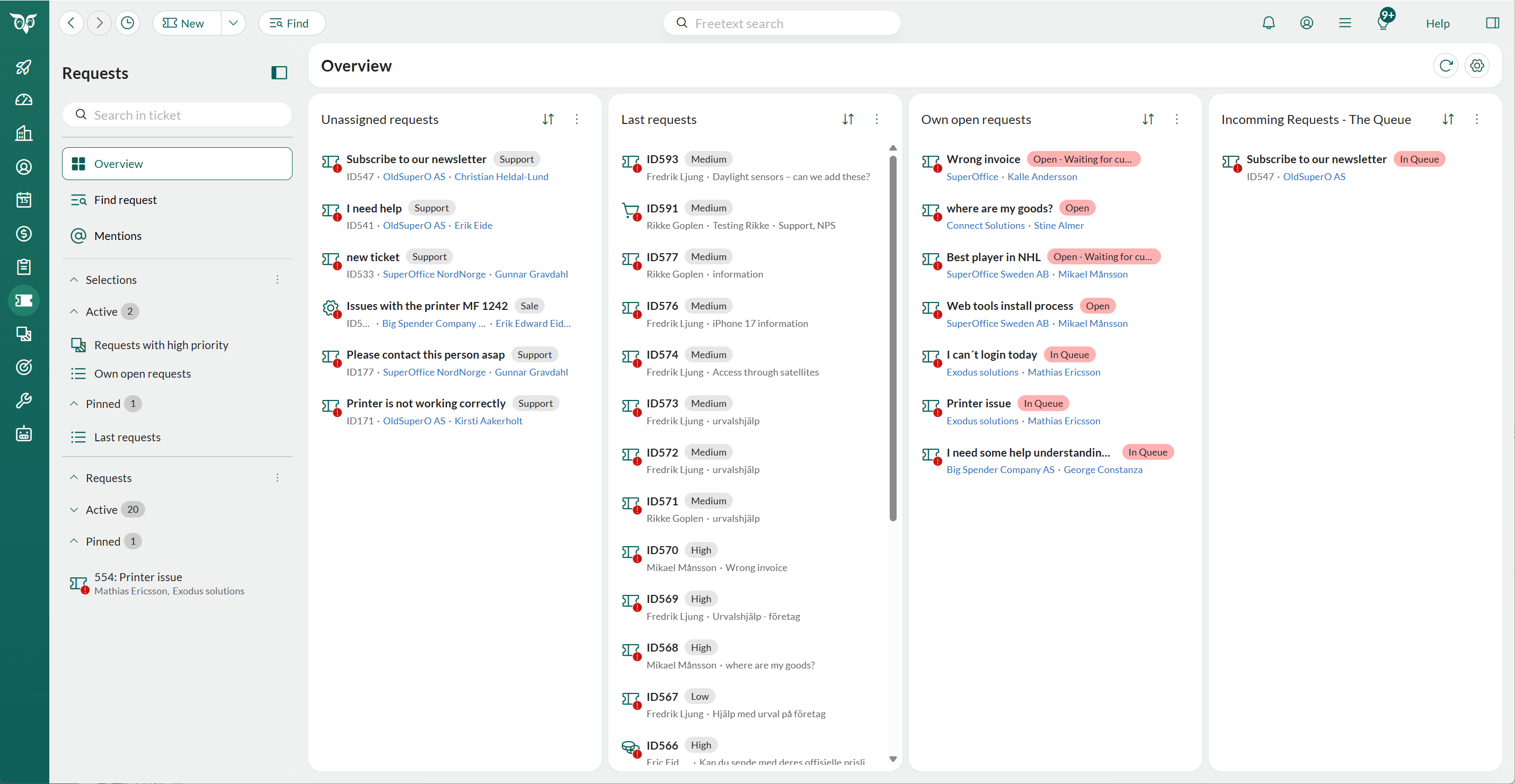
Overview: up to four queues side by side
The new Overview lets you keep track of up to four selections or request queues at the same time.
Set up each list on its own: choose the fields to show, which field appears as the badge (for example status or request type), and how the list is sorted.
Show the lists in up to four columns, or as a two-by-two grid when you want to see more fields.
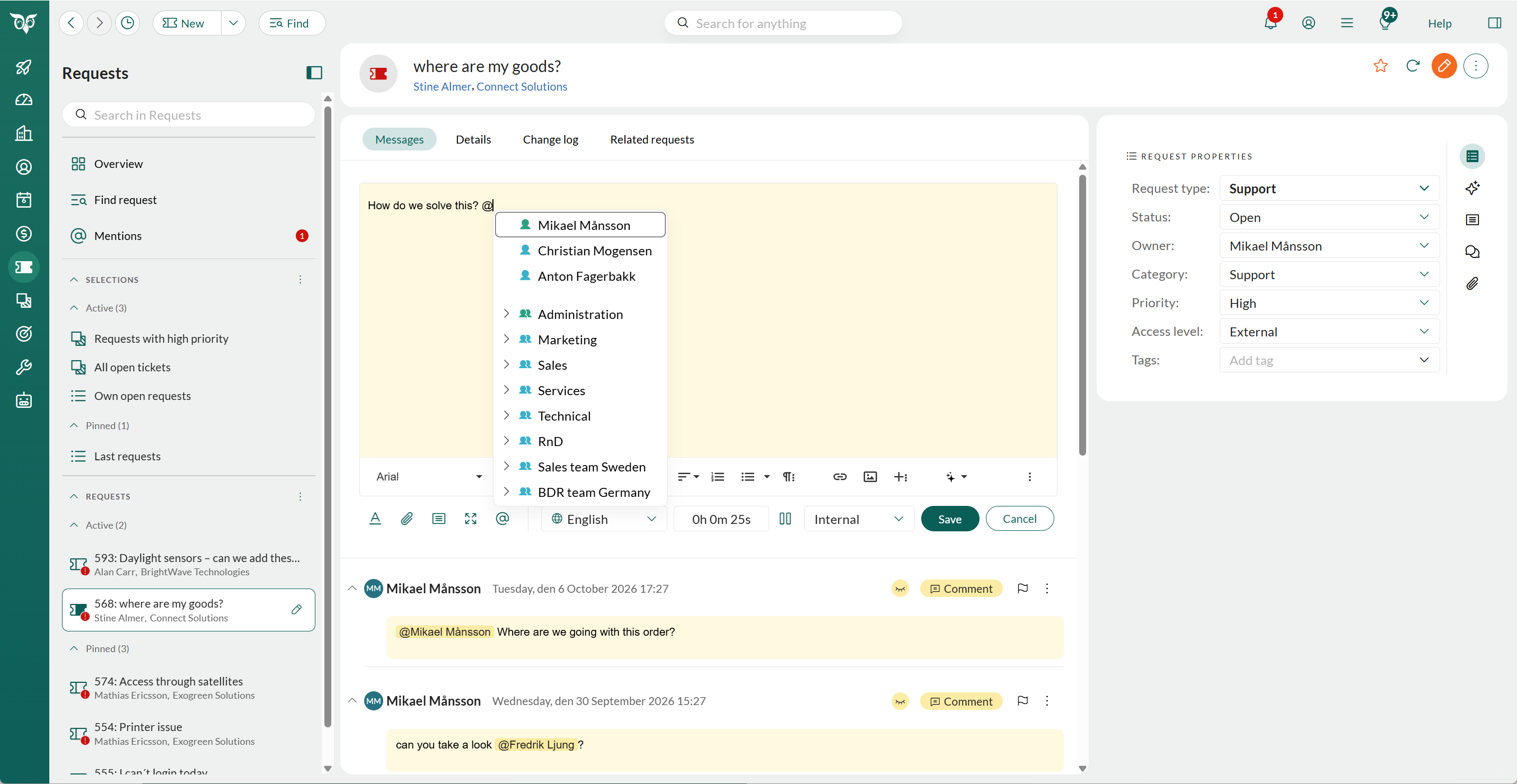
Mention a colleague with @
Looping in a colleague no longer means forwarding an email. Type @ in a request comment and pick anyone in SuperOffice from the list.
Your colleague gets a notification and can go straight to the right request and message with one click.
All mentions are collected in the Mentions section in the left menu, where you can filter between all and unread mentions.
Turn on a preference to also see mentions in the notification bell.
Why is this important?
Every minute spent looking for the right request is a minute not helping or engaging with a customer. The new Request screen gives that time back to your teams, so they can resolve requests faster.
This means:
- Faster response times for customers. Service agents handle several queues from one overview and reply without opening each request.
- Quicker answers on complex requests. With @mentions, the right colleague is brought in instantly, with all the context in one place. This enables collaboration on complex requests and increases customer satisfaction.
- Higher adoption across the team. Familiar navigation and layouts each user can adapt make SuperOffice easier to use every day.
See more of the features in interactive demos.