Summary
Conditional fields show each person only the questions that apply to them. Forms stay short for every respondent, and the data you collect is better and easier to route.
Custom styling helps your forms match your website. Work in the CSS yourself, or enter your website's URL and let AI create an editable starting point.
Basic, Custom, and AI-assisted styling cover everything from simple changes to full brand control, so you can pick the option that fits your skills.
Conditional forms
Most people assume the way to a better form is a shorter one. Cut the questions, keep the sign-ups.
But that's not quite right. Most people are happy to answer questions, as long as those questions are actually relevant to them.
The real problem isn't the number of questions. It's asking everyone the same ones. That's what conditional fields fix.
Instead of showing every question to everyone, you only show the ones that matter to the person answering.
The look matters just as much. When a form doesn't match the page around it, the experience feels less like one consistent brand, right at the moment someone is handing over their details.
The result?
Shorter forms
Every respondent answers fewer questions, not more.
A better experience
No one has to go through questions that don't apply to them.
Higher-quality data
Answers come from people the question actually applies to.
Sharper qualification
Leads and requests get segmented and routed from the first submission.
The problem: one-size-fits-all forms either miss the detail you need or lose respondents halfway through, and they often look nothing like the website around them.
The solution: conditional fields show each visitor only the follow-up questions that apply to them, and Custom or AI-assisted styling brings the form in line with your brand.
The proof: live now in SuperOffice Forms, with multi-level, chained conditions and styling that can start from your own website's URL.
Start by asking the right questions
Here are four practical ways B2B companies use conditional fields today.
Split one form into two paths
Say you're running a customer event people can join in person or online. Ask how they'd like to participate first, and the rest of the form adjusts around the answer.
Online attendees never see the lunch or dietary questions. You still collect everything you need, just not from people it doesn't apply to.
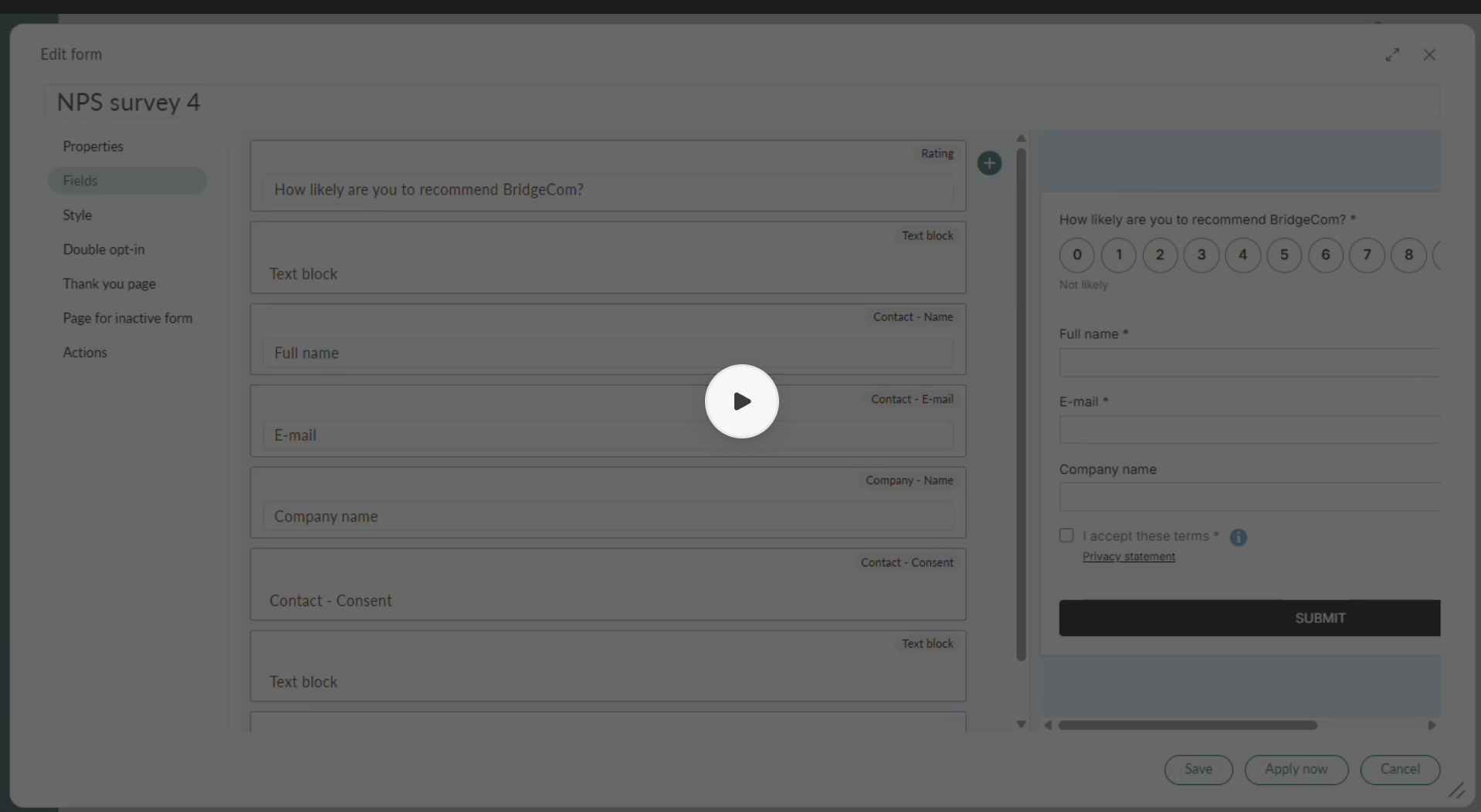
Turn one NPS score into two different conversations
Not every customer should get the same follow-up question after "How likely are you to recommend us?"
Tip: in the field settings, set the low-score follow-up to trigger on 0 to 7, not just the very lowest scores. That range catches every response that signals room for improvement.
Let one answer trigger the next question, and the next
Conditional fields aren't limited to a single level. A follow-up question can trigger another follow-up question, several layers deep.
(following the "Equipment breakdown" path)
Three levels deep, and the visitor still only ever sees one question at a time, the one that follows naturally from their last answer.
Users only answer questions relevant to their situation, while service teams receive the details needed to resolve the issue faster.
Qualify a lead before it ever reaches sales
An HR software company wants to understand the size and maturity of a prospect's HR set-up before routing the enquiry, to sales, or to a consulting team.
The enquiry lands with the right team already qualified. No back-and-forth email just to work out who should be picking it up.
Make your forms feel like part of your website
Once each respondent sees the right questions, the next thing to get right is the look. A form that fits the questions but not the brand still feels like a separate step.
Your forms are an important part of the customer experience. But when a form looks noticeably different from the page around it, the experience can feel less consistent with your brand.
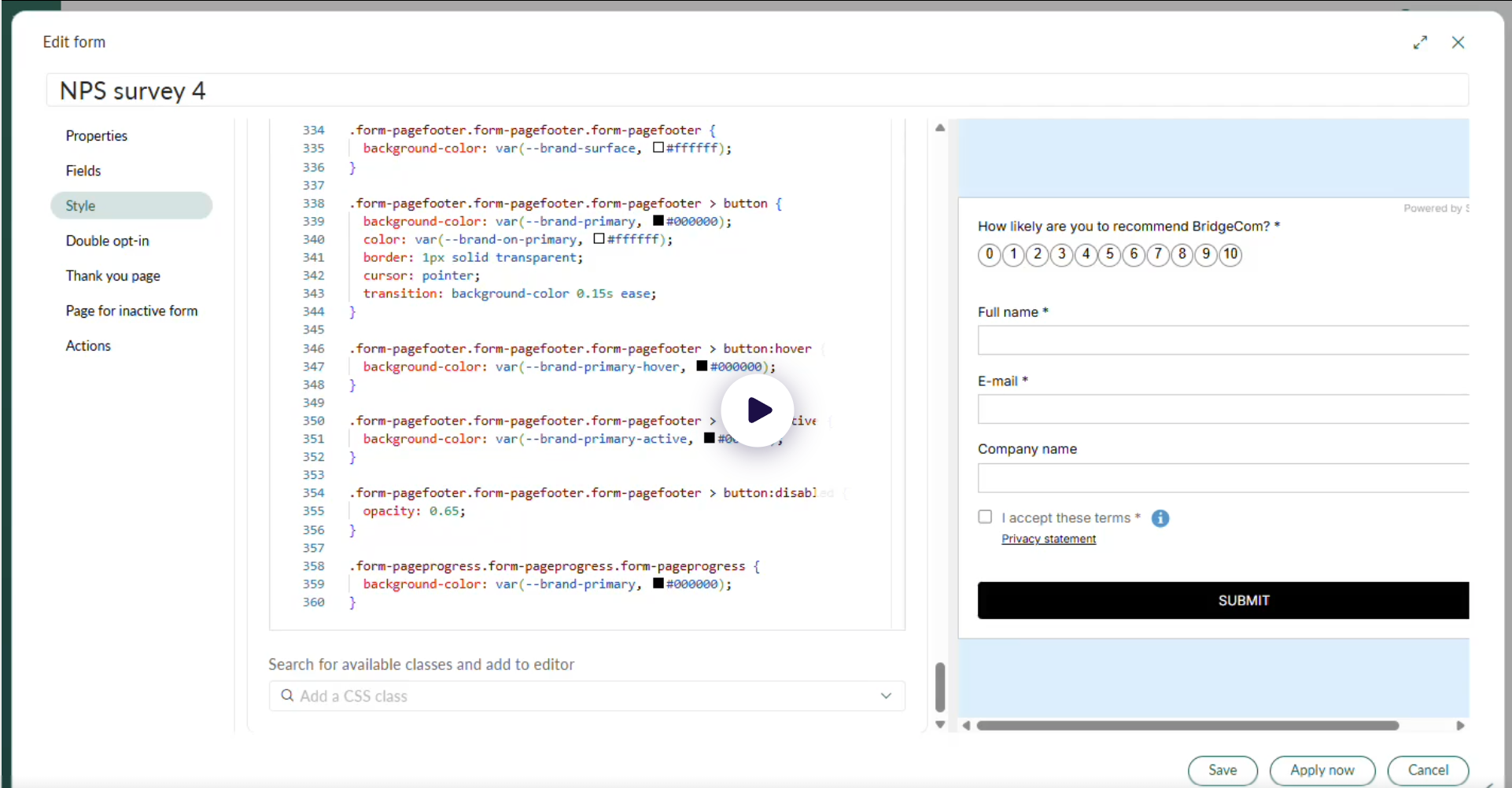
With Custom styling in SuperOffice Forms, you have more control over how your forms look. You can use CSS to adjust the design yourself, or let AI create a CSS starting point based on your website.
The result is a form that feels more naturally connected to the rest of your website.
Basic styling makes it easy to adjust common form settings. But sometimes you need more flexibility to make a form match your website and visual identity.
Custom styling gives CSS-capable users greater control over elements such as:
- Backgrounds
- Colours
- Buttons
- Borders
- Input fields
- Corner styles
- Spacing and other visual details
You can work directly with the CSS for full control or select a CSS class and add styling to a specific part of the form. This makes it easier to focus on the element you want to change.
Not comfortable starting with a blank CSS editor?
AI-assisted styling can give you a head start. Enter the URL of a website and select Extract styles with AI. The AI analyses the website and generates editable CSS in the Custom styling editor. Instead of creating the entire design from scratch, you get a first draft that you can review and refine.
The AI can use visual elements from the website to create a starting point for:
- Colours used in the form, background, borders and buttons
- Corner radius and the general shape of design elements
- Editable CSS that you can continue adjusting yourself
The generated result is a starting point, not a finished design. You remain in control of the final styling.
To sum up: which styling option should you use?
Use Basic styling when:
- You want to make simple visual changes
- You prefer not to work with CSS
Use Custom styling when:
- You want greater control over the form's appearance
- Your brand has specific visual requirements
- You or a colleague are comfortable reviewing and adjusting CSS
Use AI-assisted styling when:
- You are comfortable making CSS adjustments but do not want to start from scratch
- You want an editable first draft based on your own website rather than a generic template
Instead of asking fewer questions, ask more relevant ones. That's usually what makes the best experience, for you, and for the person filling in the form.
Frequently asked questions
Can a conditional field trigger more than one level of follow-up questions?
Yes. A follow-up question can trigger another follow-up question, so you can branch several layers deep from a single starting answer.
Which field types support conditions?
Dropdowns, radio buttons, checkboxes, and rating fields, among others.
Do people still get a shorter form, even with all these extra fields set up?
Yes. Each respondent only ever sees the fields relevant to the answers they've given, so their version of the form stays short, even though the form as a whole covers far more ground.
Do I need to know CSS to style my forms?
No. Basic styling lets you select fonts, font sizes, and the width and height of the form without any code. Custom styling is for CSS-capable users, and AI-assisted styling gives you a first draft to refine.
Can AI match my form to my website?
Yes. Enter your website's URL, select Extract styles with AI, and the AI generates editable CSS for colours, corner radius, and the general shape of design elements. It's a starting point, so review and refine it before you publish.
What can I change with Custom styling?
You can adjust backgrounds, colours, buttons, borders, input fields, corner styles, spacing, and other visual details. You can work directly with the CSS or select a CSS class to style one specific part of the form.