Find answers. Get support. Join conversations.
Community becomes smarter!
Our Community site features a Resource Centre together with an AI chat.
Latest stories

Conditional forms with on brand AI styling
We've made two big improvements to forms in SuperOffice: Firstly, we've added conditional fields to make your forms smarter. Secondly, we've added CSS forms styling to make your forms look even better. Take a look!
10/18/2026
Product Roundup Q3
We've shipped several updates this quarter and have more coming before year-end. Here's what you can use now and what's arriving in Q4.
10/09/2026
Product Roundup Q2 2026
As we close this second quarter of 2026, our PMs gathered to look at all things shipped and what's ahead in the upcoming months. Read the recap in the article or watch the full video!
07/02/2026
SuperOffice CRM Suite Super
Everything you want to know about SuperOffice CRM Suite Super.
06/11/2026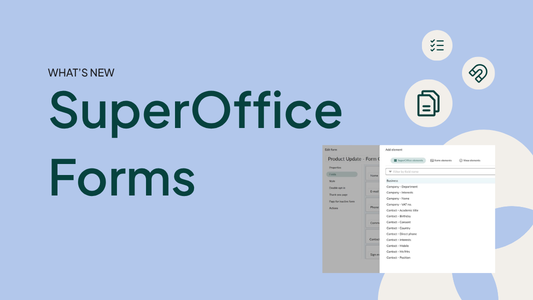
New and improved Forms
Forms, combined with relevant content, are one of the most effective ways to engage both existing and potential customers - and now they got even better!
04/28/2026Latest forum posts
-
Anders LarssonPartner
ok, Taanks Samuel. Sorry for unclear scenario. It is about scripted marketing sendouts. (created by scripts and there sending email set, as per ToDay one of mailbox addresses handled in SO) And yeah it is SuperOffice Online. So changing from info@company.com (that exsits as a valid mail-adress) to noreply@comany.com should be no problem if SPF and DKIM are set. (customer using own domain). (I have always learned that it is better to have the "sending address" exsisting then not..(onPrem world)) (In most of the cases it should work without having the noreply@company.com address existing but if recieving mail-server (or pre systems) are doing extra validation of sending address the risk of getting tagged as SPAM increases. I asked my SuperOffice and Commnit MS Copilot Agent: It answered as bellow: == Short answer: I would recommend that noreply@company.com actually exists as a mailbox (a shared mailbox is perfectly fine). While email can still be sent from a non-existent address, having a real mailbox generally results in better deliverability, easier bounce handling, and a more professional setup. SuperOffice also places strong emphasis on SPF, DKIM, and domain validation for email delivery. [docs.superoffice.com] , [docs.superoffice.com] , [docs.superoffice.com] Scenario Can emails be sent? Spam risk Recommendation 1. Address does not exist Usually yes Slightly higher Not recommended 2. Address exists (shared/dedicated mailbox) Yes Lower Recommended Scenario 1: noreply@company.com does not exist If SuperOffice sends emails with: From: noreply@company.com the recipient's mail server will typically validate: SPF DKIM DMARC Domain reputation As long as SPF, DKIM, and DMARC are configured correctly for company.com , the email can still be delivered successfully. SuperOffice supports SPF validation and DKIM signing of outgoing emails. [docs.superoffice.com] , [docs.superoffice.com] Potential drawbacks: Any recipient who replies will receive a bounce message. Some mail filters perform additional sender validation checks. Bounce messages cannot be received or reviewed through that address. Troubleshooting delivery issues becomes more difficult. It may create a poorer recipient experience. I would not expect a significant increase in spam classification solely because the mailbox does not exist, but it is generally not considered a best-practice configuration. Scenario 2: noreply@company.com exists as a mailbox This is normally the preferred approach. Benefits include: Reply messages can be received and handled if needed. Bounce messages can be monitored and investigated. The sender identity appears more legitimate. Easier troubleshooting and administration. Future flexibility if the business later decides to process replies. Many organizations create noreply@company.com as a shared mailbox and then: Automatically delete incoming messages Send an auto-reply such as "This mailbox is not monitored" Forward selected messages to support or customer service More important than whether the mailbox exists In practice, deliverability is usually affected much more by: Correct SPF configuration DKIM signing DMARC policy Sender reputation Complaint and bounce rates SuperOffice documentation explicitly highlights SPF validation and DKIM configuration as important requirements for sending from your own domain. [docs.superoffice.com] , [docs.superoffice.com] , [docs.superoffice.com] Recommendation For a SuperOffice Online solution, my recommendation would be: ✅ Create noreply@company.com as a Shared Mailbox in Microsoft 365 ✅ Configure SPF according to SuperOffice recommendations ✅ Enable DKIM for the sending domain ✅ Keep your existing reply template explaining that the address is not monitored ✅ Optionally configure an automatic response or forwarding rule This provides the best balance between deliverability, maintainability, and future flexibility. [docs.superoffice.com] , [docs.superoffice.com] , [docs.superoffice.com] == //Anders
28 Sep 2026 | 09:21 AM -
HI Bas, thanks. We have a single Support mailbox to support Emergency Incident with our Support Teams from diff. Regions for all global Customer. Currently integrierted is our Support Teams in HQ Bremen and Singapore, later planned is more Countries/Regions in Far east. I check in Database, the Escalation Level will be reached if alert-timeout is on time, with exception of Weekend and Red days. Maybe I must buld Logic to calculate this with seprated Time frame and red days for our diff. User groups in Scripts.
2 Sep 2026 | 12:05 PM -
Trevor SharpPartner
That's amazing news, thank you, I will let the customer know 😊
25 Aug 2026 | 02:33 PM -
Susan Laugaard HansenStaff
For a customer, we helped with calculating the merge fields in Word. See the example where we needed to find the unit price, but only had the line total price and quantity available.
20 Aug 2026 | 01:33 PM -
David HollegienPartner
Hi Samuel, very weird syntax that it does not include the '.', but indeed it works with , only not when using it in a url of a custom object record in the right click context menu, then it uses the value from the last record you actually 'opened', instead of the row that is active, propably it uses the record that is in your currents. How supported is this? since this is not documented anywhere (so far i can find)
3 Aug 2026 | 12:03 PM -
Hi Bas, Our tickets in CS are not only for our service & support but also Billing monthly sent to our Customer. Closing a ticket requires filling in several mandatory fields shown in bold in Tieckt Header; otherwise, it’s IDs will display in a red row to user, this ensures that no tickets being skipped to bill to our customer. The associated lists of cost center in extra table and project are two of them. We have thousands of projects; For enabling users to quickly and easily find and select his correct project in TicketEdit, we need a filtered project-list with status neither closed nor cancelled, sorted by project start date, includes specific display fields. The Solution in Screen with Simple Value works exactly on our demand. In contrast, triggered dialogs require a step more to ask user in dialog to confirm the Project Status -- The process lacks conciseness. Similar to the linked cost center list, which includes a "Disable" field in extra table, in TicketEdit should display only active cost centers, the Triggered dialogs require the user to confirm the display of active cost centers via an additional prompt -- an unnecessary step for the user. In short, triggered dialogs is general good but not ideal for our this application. The ideal approach would be to implement the necessary conditions beforehand -- like simple value in Screen or conditions in Archive of ScreenDesigner.
19 Jul 2026 | 03:54 PM
Active forums
-
Service management
Let's talk about request / ticket management, automation and knowledge base management in SuperOffice Service.
09/02/2026 231 -
Setting up and administrating Service
Let's talk about setting up and administrating request management and knowledge base in SuperOffice Service.
09/28/2026 179 -
Settings and maintenance
Let's talk about preferences, lists, labels, SAINT, data import and other CRM administration topics.
08/20/2026 165 -
Custom Objects
Introducing Custom Objects to replace Extra fields and Extra tables in Service: Auto generated archive tabs, SuperOffice Selections, Extending search capabilities on relational fields
08/03/2026 102 -
Conditional fields
Conditional fields
08/25/2026 15