Connect your e-mail account to send and save e-mails directly within SuperOffice - simply click an e-mail address, write your message, and click Send and archive to do exactly that. Each e-mail is automatically archived, helping you stay organised and maintain a complete overview of your communication. You can also manage your schedule with ease by sending and receiving meeting invitations, complete with automatic notifications and seamless additions to your diary.
To support your document workflows, SuperOffice WebTools allows you to open, edit, and share important files with colleagues, wherever you are. By storing documents in SuperOffice, you benefit from secure and convenient access whether you are in the office, travelling, or working from home. All files and information are centralised, making collaboration straightforward and efficient. With WebTools, uploading and managing documents is both quick and reliable, ensuring everyone can access what they need, when they need it.
User setup - How to get started
To begin, connect your e-mail account and install the document tool. If you would like to run the wizard, you can access it from top bar menu for Personal settings > User setup.
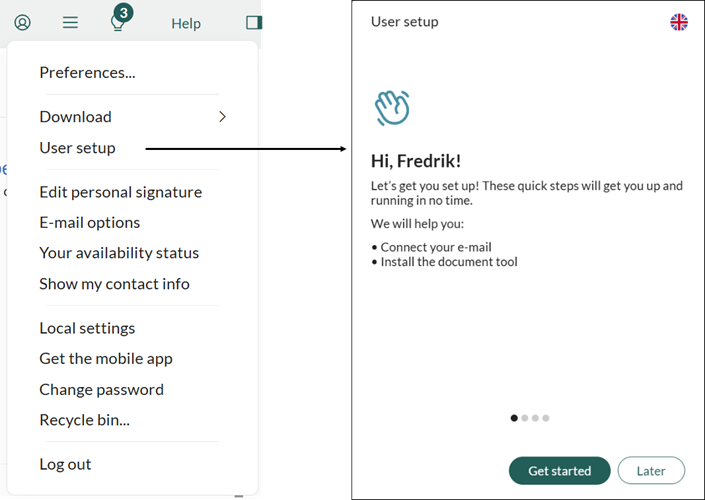
You can change the language in SuperOffice using the option in the top-right corner of the wizard.
Click Get started to begin the user setup.
1. Connect your e-mail account
Click Connect to open the dialogue where you enter your e-mail address and password.
Once connected, a green checkmark will confirm that the connection is successful.
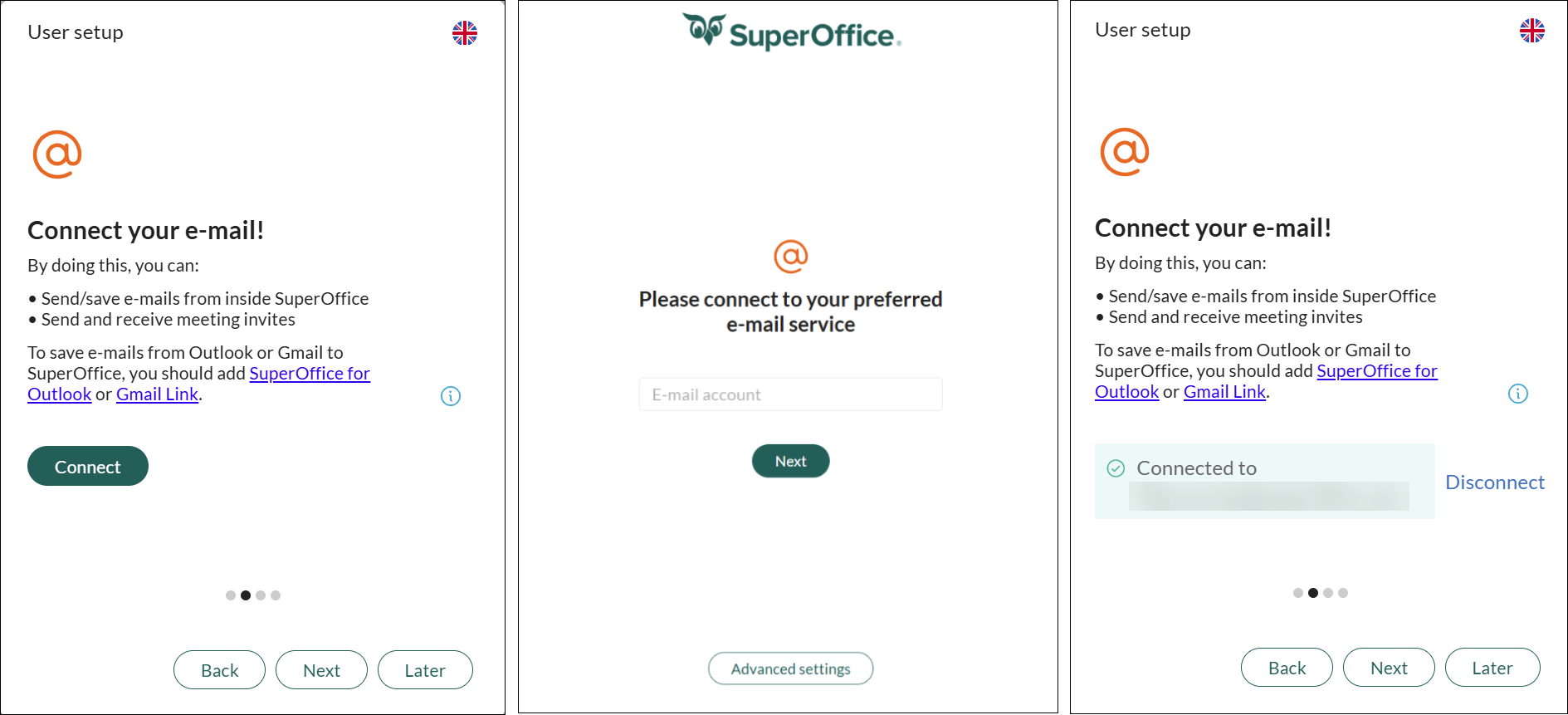
(If this step does not appear, your e-mail account is already connected.)
Click Next to continue to the next step: Documents.
2. Work faster with documents
Click the Download button to start downloading the installation file, SuperOffice WebTools.
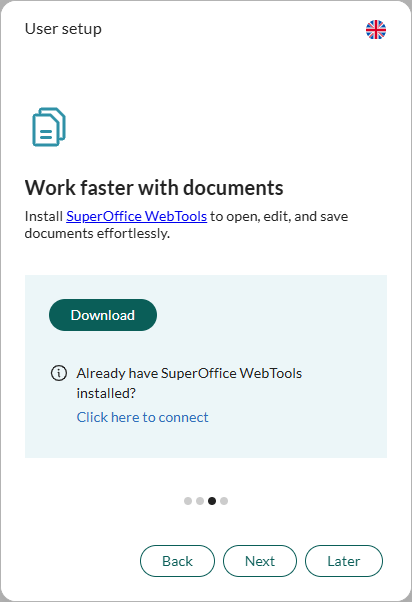
Once the file has been downloaded to your computer, double-click it (either in your browser or in your downloads folder) to begin the installation.
In the installer window, click Install.
When the installation is complete, click Close to exit the installer.
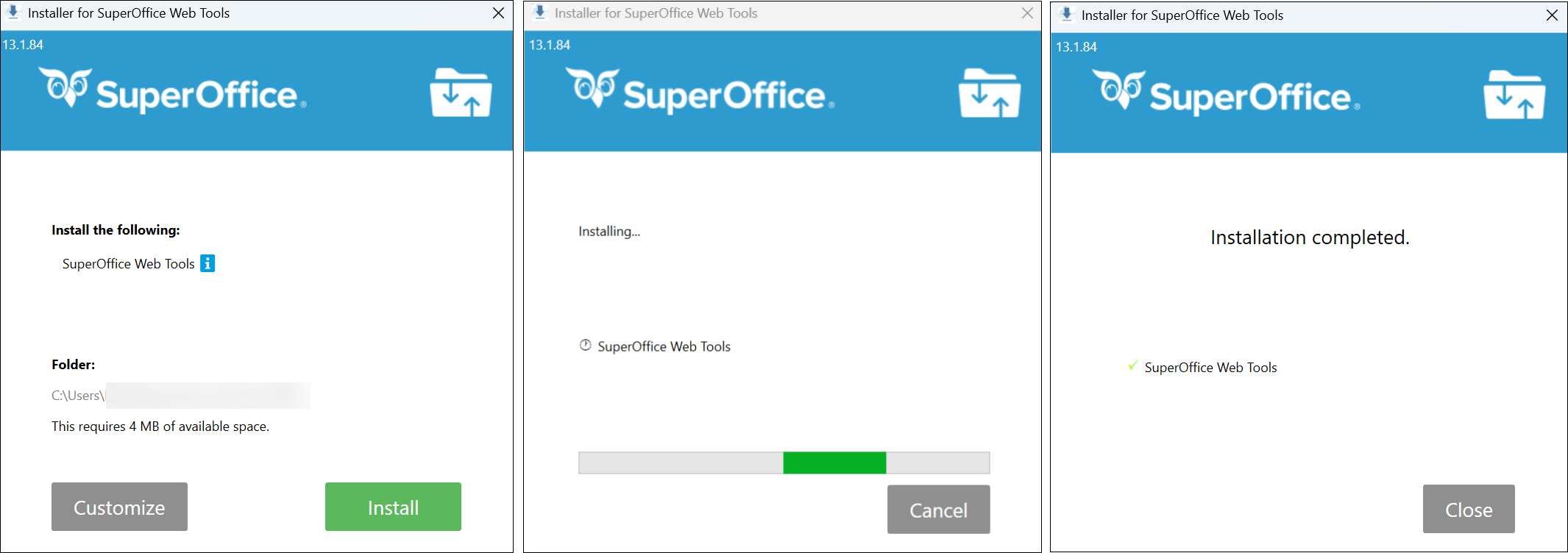
A success message will appear, confirming that WebTools has been linked to your SuperOffice CRM.
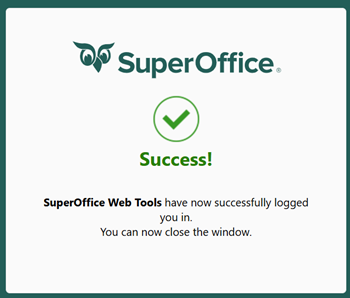
Click Next to continue with the wizard for User setup.
User setup - Summary
The final page of the user setup displays a summary of the completed steps.
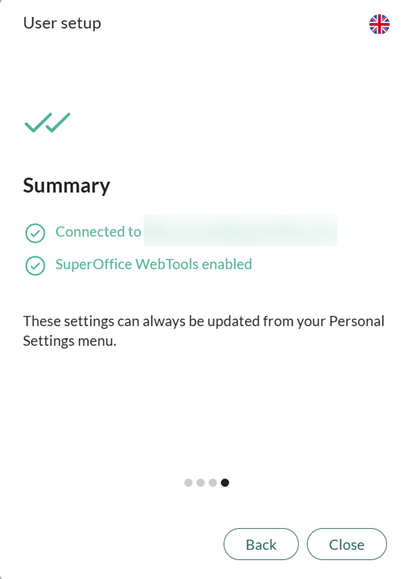
You have now:
- Connected your e-mail account to SuperOffice CRM.
- Installed SuperOffice WebTools to manage your documents.
You are now ready to start working efficiently with e-mails and documents in SuperOffice CRM.
How to use e-mail, invitations and documents
This guide explains how to create documents, send e-mails, manage meeting invitations, and make the most of SuperOffice WebTools.
How to create a document
- Click on the New > Document button in the top bar of SuperOffice CRM.
- Choose the type of document you want to create and click Create.
- The document will open on your computer. Start writing, and simply close it when you are finished.
SuperOffice WebTools will automatically upload all the changes to SuperOffice CRM.
To open an existing document, double-click it in SuperOffice.
If another user is already editing the document, a dialogue box will inform you who is working on it. You can still open the document in read-only mode if needed.
For more information, see Check in/out documents in Learn | Docs.
If you use Microsoft 365 SharePoint, it is recommended to set up integration with SuperOffice CRM to further improve document handling.
How to create an e-mail
- Click on New > E-mail in the top bar or any e-mail address in SuperOffice CRM.
- Write your e-mail.
- Click Send and archive to send the e-mail and automatically save it in SuperOffice CRM.
For more details, see Send e-mail from SuperOffice CRM.
Note:
To archive incoming e-mails in SuperOffice, you can install SuperOffice for Outlook or SuperOffice Gmail Link from SuperOffice App Store.
How to manage meeting invitations
When you connect your e-mail account, your invitations are automatically synchronised with SuperOffice CRM.
You can:
- Send meeting invitations to external recipients
- Receive invitations from others
- Track responses such as accepted or declined
Your diary in SuperOffice CRM will always stay up to date, making it easier to organise your day.
Diary notifications - stay on time
When your schedule is busy, it is easy to overlook tasks or meetings.
By installing WebTools, you can enable reminders (alarms) for your activities.
- Notifications appear as pop-ups from your computer’s system tray (usually in the bottom-right corner).
- A sound alert will notify you when the reminder is triggered.
- In the notification window, click Show to open the activity in SuperOffice.
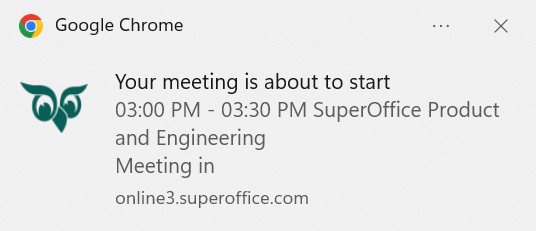
WebTools enables notifications and alarms for all scheduled diary activities.
For more information, see how to set alarms for meetings, tasks, and follow-ups.
Additional features
SuperOffice WebTools also provides several useful shortcuts and enhancements:
- Open SuperOffice quickly
Double-click the SuperOffice icon in your system tray to open it without using a browser. - Access WebTools settings
Right-click the SuperOffice icon in your system tray to open preferences or set alarms.
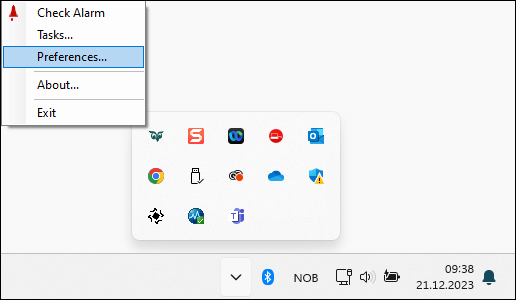
If you double-click the WebTools icon in your system tray, SuperOffice will open. Right-click the icon to access settings or configure alarms for appointments.
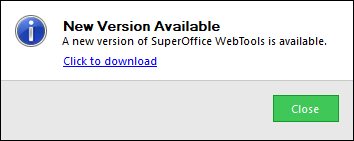
You may also see a pop-up notification if:
- WebTools is not installed on your computer, or
- A new version of WebTools is available.
Summary
Here are the key benefits of connecting your e-mail account and using SuperOffice WebTools:
- Work with e-mails and send or receive invitations directly within SuperOffice CRM
- Read and edit documents without manually uploading or downloading files
- Stay on top of meetings and tasks with pop-up notifications
- Open SuperOffice quickly from your system tray