WebTools are a set of small programs which make it easy to open, edit, and share important documents and email with other SuperOffice users. When you have everything in SuperOffice, you will always have access to it in the office, on the go, and at home.
The main benefits of installing WebTools:
- Build customer history by connecting documents and emails to relevant contacts, projects, and sales
- Easy up- and downloading
- Upload important email to share information and get a tidy inbox
- Get notifications from your diary
- How to install WebTools
Build customer history by connecting documents to contacts, projects and sales
Why have documents saved in different folders, computers, and servers when you can have them all in one place?
When uploading documents to SuperOffice, you can connect them to the right customer right away. Then, if another SuperOffice user in your company is looking for information, they can just look to the customer card to find your document.
You can additionally link the documents to a contact person, project, and sale for added findability and tracking purposes.
By doing this, you will be able to see all documents you and your colleagues have sent or received from each customer. There will be no more emailing documents around.
Learn how to create a document from SuperOffice.
Create, read, and edit documents with ease
Once you have installed WebTools, you can easily create documents from inside SuperOffice. Creating a document from a SuperOffice customer card will automatically connect it to the company in question.
How to create a document:
- Click on the Document button in SuperOffice.
- Choose the type of document you want to create, and press Create.
- The document opens on your computer. Start writing, and close it when you are done. WebTools will save all the changes for you automatically to SuperOffice.
You can open any document in SuperOffice by double-clicking it.
If you open a document that another user is working on, a dialog box will show you that someone is editing it and who it is. If you still want to open the document, you can do it in read-only mode.
Archive e-mail directly from Outlook to build history
Are you sorting e-mail into folders for clients, internal discussions, and various projects? Chances are that your colleagues do the same.
When you keep your e-mail communication in your own folders, each of you can only see a fragment of the communication history with a customer. Knowing who has written what to whom will be difficult or even impossible.
Instead, you can archive e-mails in the same place in SuperOffice. With just a few clicks you can connect it to customers, and even related projects and sales. If SuperOffice recognizes the sender’s e-mail address, the system will automatically link the e-mail to the right company and contact.
With the add-in, you can quickly:
- Save new contacts, e-mails, sales, activities, or requests from Outlook to SuperOffice CRM.
- Access contact, sale, and request details for anyone in the e-mail thread.
- Get instant context on who you are interacting with through the add-in panel.
- You will have key information at your fingertips, right when you need it. Plus, it is fully cloud-based, so no installation is required – simply enable it from your browser, and you are ready to go. You will find the SuperOffice for Outlook add-in in Outlook.

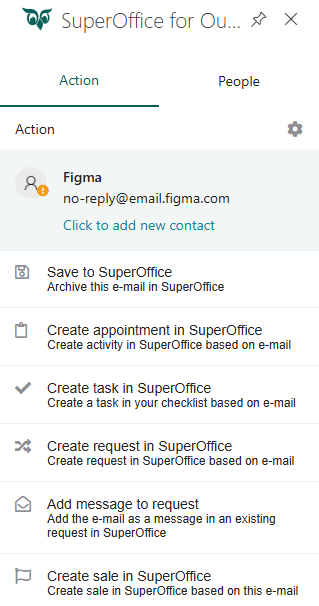
How to install SuperOffice for Outlook:
Head to our SuperOffice App Store and check out the How to Install tab. Follow the simple steps to enable the add-in – no download required.
Read more about SuperOffice for Outlook.
Diary notifications: Be on time with appointments
When you are busy, it’s easy to forget scheduled tasks – or even worse, a meeting.
If you install WebTools, you can set alarms to notify you before the activities start.
Alarms will show as pop-ups from your computer’s system tray (the information bar on your bottom right corner), and you will hear a bell sound when it goes off. In the alarm window, you can open the activity in SuperOffice by clicking on Show.
How to set alarms for activities such as meetings, tasks, and follow-ups [help]
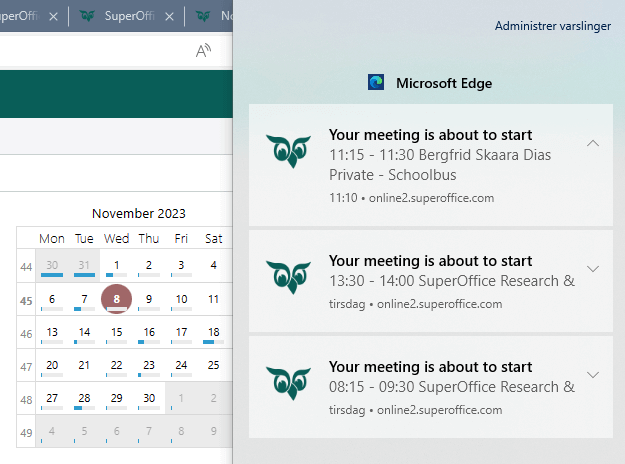
Install WebTools to enable notifications and alarms about scheduled diary activities from SuperOffice.
Other features:
- Send email to recipients in a selection: Add all email addresses from a selection of contacts as recipients to an email.
- Meeting invitations by email: When setting up a meeting, you can send invitations to participants by email from SuperOffice.
- Shortcut for opening SuperOffice: Open SuperOffice without opening a browser window. Simply double-click the SuperOffice logo in your computer’s system tray, and SuperOffice will open a new window.
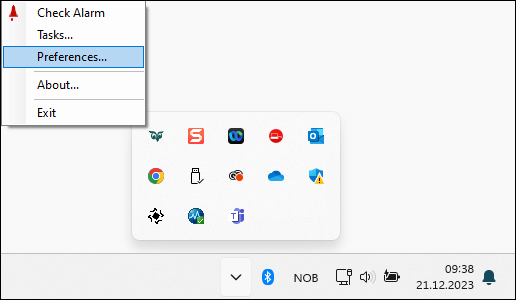
The SuperOffice WebTools icon in your system tray. If you double-click it, it will open SuperOffice. Right-click the icon to set an alarm for all appointments.
How to install WebTools
We are always working to improve our programs, including WebTools. When a new version of WebTools is available, you will get a notification when logging in. To install the new version, just follow the guide which appears on your screen.
If you need to reinstall them, just follow this guide:
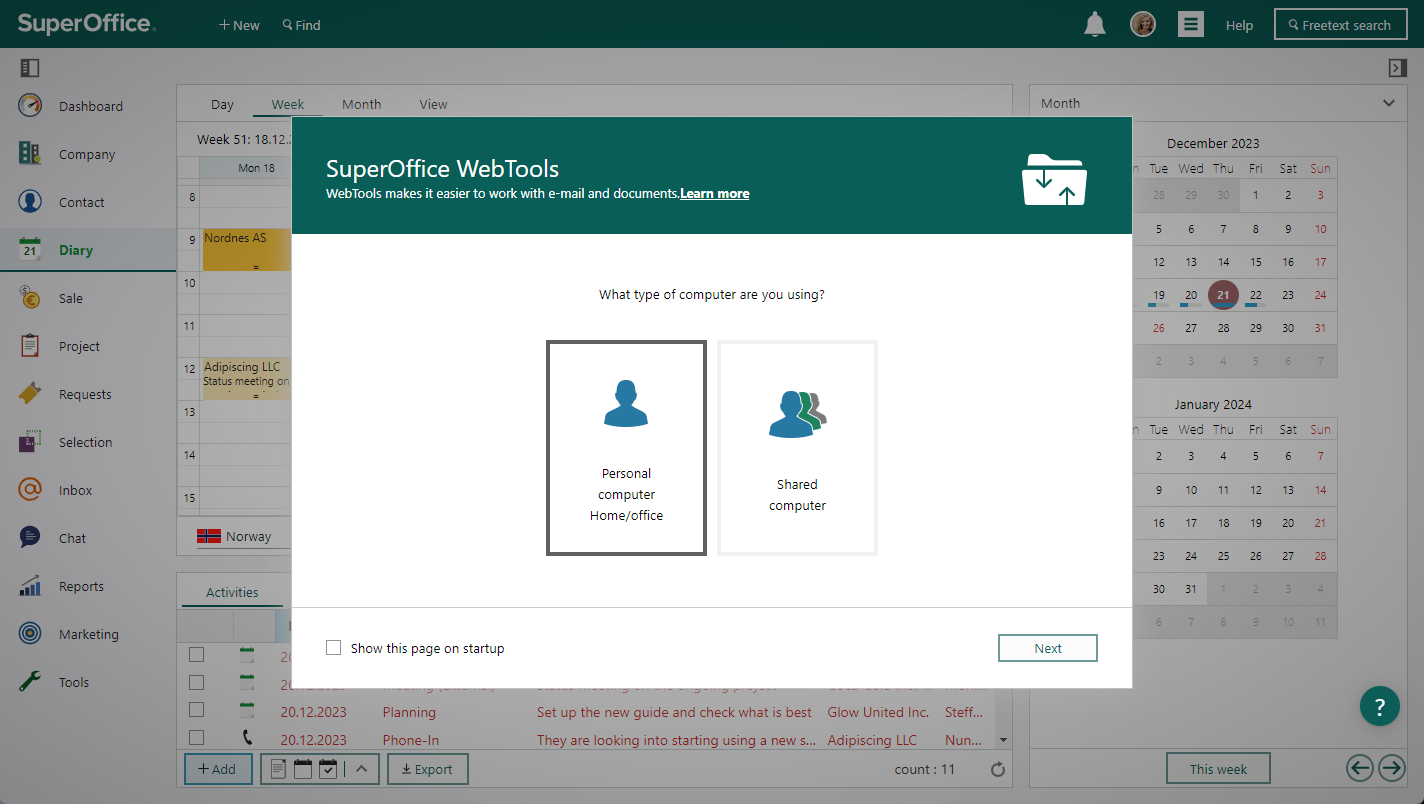
Pop-up window for updating your SuperOffice WebTools. You get this pop-up if WebTools are not installed on your computer, or when there’s a new version of WebTools available.
Summary
Here’s a short list of the benefits of installing SuperOffice:
- Install WebTools and SuperOffice for Outlook to upload important email and attachments to SuperOffice directly from Outlook.
- Email that you archive to SuperOffice are automatically saved to the sender’s company card. If needed, you can also link the email to a related project and sale.
- You can also archive email as appointments or requests.
- Read and edit documents without manually up- or downloading them to your computer.
- Avoid missing out on meetings and important tasks by setting up pop-up notifications.
- Open SuperOffice directly from your system tray.
- Add all contacts from a selection as recipients of an email.
Related articles: